OpenText Delta PDF Free Download
1 / 19/19
100%

OpenText Delta®
The open architecture of Opentext Delta lets you create just about any integration solution imaginable. Whether you
want to integrate EDI purchase orders with an internal accounting database, convert accounts receivable les into XML
invoices, load your inventory into an online Web catalog, or handle Web service requests, Delta has all the tools you
need to integrate your business operations.
As a universal data translator, Delta not only supports EDI standards (X12, EDIFACT and TRADACOMS), but a variety of
other data formats as well, including data (at) les, database tables (via OLE DB), and XML. Delta also supports mapping
to free-form text formats such as HTML to aid in Web integration.
Because Delta is an any-to-any mapper, not only are you able to integrate all incoming and outgoing e-commerce
documents with your internal applications, but you are also able to integrate between your internal applications. When
Delta is paired with OpenText ECS communications server, you have an enterprise application integration (EAI) solution
capable of coordinating the many diverse applications, database, and e-commerce formats found across your enterprise.
select a topic to continue
Editions &
System Requirements Features Introduction Benchmarks Enhancements

Delta Components & Editions
OpenText oers three editions of OpenText Delta: Delta Standard,
Delta Enterprise, and Delta Run-Time. The Standard and Enterprise
editions are comprised of two individually-licensed components: Delta
Studio and Delta Engine.
Delta Editions
Delta Standard provides complete, integrated support for creating,
maintaining, and running translation maps for all Delta’s supported
source and target data formats.
Delta Enterprise includes all features of Delta Standard, plus the
Solution Manager, which allows for centralized management and
deployment of Delta resources. In addition, Delta Enterprise includes
support for W3C-/IETF-published XML security standards.
Delta Run-Time incorporates the same powerful map execution
capabilities as Delta Standard and Enterprise, but without any user
interface components. Because Delta Run-Time cannot be used to
create or edit translation maps, it’s typically used by independent
software vendors looking to bundle Delta as part of another software
solution for the purpose of oering out-of-the-box translation to clients.
Delta Components
Delta Studio is the design component of Delta. From Delta Studio,
developers can access, congure, manage, administer and develop all
data translation maps.
Delta Engine is required to execute the maps developed in Delta
Studio. As such, Delta Engine is typically installed on the server,
whereas Delta Studio typically resides on a developer’s workstation.
One Delta Studio and one Delta Engine license are included with the
purchase of Delta Standard and Delta Enterprise, Additional licenses
are available for purchase.
Component Minimum Requirement
Computer Intel Pentium-compatible CPU with 1 GHz or higher processor
Memory 1 GB of RAM (2 GB recommended)
Hard Disk Space 250 MB available disk space
Operating System
Microsoft Windows® Server 2012 or 2008, Windows 8,
Windows 7 (Professional, Enterprise, or Ultimate editions),
Windows Vista, Windows 2003 (Standard, Enterprise, or Data
Center editions), or Windows XP Professional
Delta System Requirements
Data Formats Supported By All Delta Editions
Editions &
System Requirements Features Introduction Benchmarks Enhancements

Model Display
Mapping Map Testing
Easy Modeling Trading Partner
Management
Solution Manager Helpful Utilities
Editions &
System Requirements Features Introduction Benchmarks Enhancements
select a data format to learn more about Delta’s modeling features
Overview EDI Data File XML Database Text Document
Easy Modeling of Data Formats
Before you can map between two data formats, you must rst model those formats.
The source model represents that data that you are translating and the target model
represents the data after it is translated. For example, if you are integrating
incoming EDI purchase orders into an accounting database, you source model
represents the EDI purchase order format and your target model represents the
format of your accounting database.
From OpenText Delta, you can design models from scratch or you can import
sample les or electronic specications and let Delta design them for you. Either
way, Delta’s helpful modeler eciently guides you though the process, prompting
you for important information about your model and the unique attributes of the
data format you are modeling.
Delta displays your models in a user-friendly interface. All objects and elements are
given descriptive titles and parent-child relationships are graphically shown via
nesting. In addition, each element has its own set of properties that let you control
the element’s mandatory status, width, range, acceptable values, and so on.

EDI Modeling
OpenText Delta ships with the nal releases of the ANSI X12 and the UN/
EDIFACT standards and oers full support for all X12 dictionaries and all
recent EDIFACT directories. In addition, Delta support the TRADACOMS EDI
standard.
EDI Modeling with Ease
There are ve easy ways to model your EDI documents:
Import sample EDI documents
Import pre-built models from the OpenText library
Import Standard Exchange Format (SEF) les
Import Guideline XML (gXML) les
Use Delta’s built-in EDI standards
When you import a sample EDI document, Delta creates a baseline model that
reects all the segments and elements found in the sample. This baseline
model can then be enhanced with additional segments, elements and code
values as needed.
If your trading partner makes their implementation conventions (ICs) available
in an electronic SEF or gXML le format, Delta can use this information to create
a complete EDI model in a matter of seconds, no adjustments needed.
Even creating an EDI document from scratch is easy. Using its built-in EDI
standards, Delta provides you with a baseline EDI model that contains the
mandatory segments and elements required for the EDI version and document
type you are modeling. If your trading partner’s IC calls for “illegal” EDI, you can
create and save a custom EDI version to use a basis for your EDI model.
Migrating to New EDI Versions
If your ICs or those of your trading partners are updated to reect a new
EDI version, OpenText Delta can automatically convert your models to the
new version. Called map migration, this feature save you the time and
trouble of recreating your EDI models and the maps associated with them.
Mapping Map Testing
Easy Modeling Trading Partner
Management
Solution Manager Helpful Utilities
Editions &
System Requirements Features Introduction Benchmarks Enhancements
Overview EDI Data File XML Database Text Document

Data File Modeling
Like EDI models, data le models are easily created by
importing sample les. OpenText Delta recognizes both xed-
width and character-delimited le formats, including comma-
separated values (CSV) and tab-delimited les.
Hierarchical & Structured Data Files
OpenText's data le models can consist of multiple, linked
data les (also known as hierarchical data les) or multiple
record types (also known as structured data les). This is
crucial for support of the header-detail relationships often
found between data les.
When linking data les within a data le model, Delta prompts
you for linkage information. Typically, linkage Is accomplished
though matching eld values. Then, during mapping, Delta
uses the linkage criteria to read in or write out all of a header
record’s detail records before moving on to the next header
record.
When incorporating multiple record types within a data le
model, Delta prompts you for record identiers so that it can
distinguish record types during mapping.
When incorporang mulple
record types within a data le
model, Delta prompts you for
record ideners.
When linking data les within a
data le model, Delta prompts
you for linkage informaon.
Mapping Map Testing
Easy Modeling Trading Partner
Management
Solution Manager Helpful Utilities
Editions &
System Requirements Features Introduction Benchmarks Enhancements
Overview EDI Data File XML Database Text Document

XML Modeling
There are four easy ways to model your XML documents:
Import sample XML documents
Import XML Schemas
Import DTDs
Use Delta’s XML modeler to create an XML model from scratch
Web Services
OpenText Delta, when used in conjunction with OpenText ECS, provides a
complete solution for the exchange, creation and translation od XML-based
business frameworks such as RosettaNet, SOAP, OAGIS, and ebXML. In other
words, Delta’s support of XML opens up the world of Web services to you.
One feature that is integral to Delta’s support of XML-based business
frameworks is the XML Schema Manager. The XML Schema Manager locally
stores the schemas you work with so that, during mapping, Delta can
dynamically validate XML data against its associated schema.
Another feature integral to Delta’s support of XML-based business frameworks
and Web services is the ability to overlay XML models with identity models. An
identity model identies the location of key elements in an XML business
document such as the document’s sender, receiver and control number. This
gives business context to XML data so that (1) Delta can recognize the sender/
receiver of incoming XML data and trigger the appropriate maps and (2) ECS
can track XML data as it passes through your enterprise.
Mapping Map Testing
Easy Modeling Trading Partner
Management
Solution Manager Helpful Utilities
Editions &
System Requirements Features Introduction Benchmarks Enhancements
Overview EDI Data File XML Database Text Document

Database Modeling
OpenText Delta supports Microsoft’s OLE DB standard for universal
data access, allowing you to avoid intermediary data les and
integrate directly with your internal database applications. Since OLE
DB is backward compatible with the ODBC standard, Delta can access
hundreds of relational database systems, including SQL Server,
Oracle, IBM’s DB2, and Informix, as well as le-based databases such
as a Microsoft Access, dBASE and FoxPro.
Modeling databases is easy in Delta. To connect to and model a
database, you create a data link in the Data Link Manager utility. Data
links identify database location, username and password, and other
relevant database information.
As with data le models, database models can consist of multiple,
linked tables. This is crucial for support of the header-detail
relationships typically found between database tables. A single
database model can incorporate tables that do not reside in the same
database, or even on the same machine.
Aording you more power, Delta lets you write your own structured
query language (SQL) statements for running complicated queries or
calling stored procedures.
If database columns have constraints
placed on them or are read only, Delta
displays these designaons in the model.
Any column descripons or comments
that the database stores are displayed
here as well.
Mapping Map Testing
Easy Modeling Trading Partner
Management
Solution Manager Helpful Utilities
Editions &
System Requirements Features Introduction Benchmarks Enhancements
Overview EDI Data File XML Database Text Document

Text Document Modeling
For use as a target model only, text document models allow you to translate any of the
previously-highlighted model formats into text les. For example, you can use this
model type to create faxes, e-mails, form letters, and even HTML-formatted Web pages.
OpenText Delta’s text document models are unique in that the model elements are
referenced within the text sections that you author. During mapping, these elements
are substituted for the data that is mapped to them, letting you populate the text
output with information that is specic to the source data.
The text entered for a text
secon object references the
object’s child elements.
Mapping Map Testing
Easy Modeling Trading Partner
Management
Solution Manager Helpful Utilities
Editions &
System Requirements Features Introduction Benchmarks Enhancements
Overview EDI Data File XML Database Text Document

Flexible Interface
From the map development window, all of OpenText Delta’s diagnostic and debugging tools are at your ngertips, along with a number of other task-oriented
panes. These panes can be grouped with other panes to create a panel or singled out for maximum access. Panes (and panels) can be docked to any area of the
interface - or undocked so that they oat over the interface. In addition to a exible workspace, OpenText Delta also oers a variety of map-viewing modes and
rule-viewing options on a per-map basis to help you create the ideal work environment for map design and navigation.
Busy Mapping Interface Clean Mapping Interface
This is an example of a map development interface that fully
ulizes the interface display opons. All panes/panels are
pinned open, the map has its ruleset and models visible, and
the Bookmarks pane has been pulled out of the lower panel.
This is an example of a minimalist map development interface.
All panes/panels are unpinned so that they only take up real
estate when you hover over them; and only the maps’ ruleset
is displayed, rather than the ruleset and models.
Mapping Map Testing
Easy Modeling Trading Partner
Management
Solution Manager Helpful Utilities
Editions &
System Requirements Features Introduction Benchmarks Enhancements
select a data format to learn more about Delta’s mapping features
Interface Rule Components
Drag-and-Drop Mapping Tools

Drag-and-Drop Mapping
Once your business object models are dened, the next step is to identify
how the target model will use information from the source model. This is
done by writing rules that link the source model’s data elements to their
proper positions in the target model. In OpenText Delta, rules can be
written by dragging and dropping a source element onto a target element,
or they can be written manually.
Delta supports both source-driven and target-driven mapping. By default,
Delta performs rules based on source data structure, but if the structures of
your data formats are too disparate, you can switch to target-driven mapping.
Delta’s target-driven mapping features lets you reorder the objects in the
source model so that they more closely match their counterparts in the target
model.
To map an element from your source
model to your target model, drag it to
the target model. The resulng rule
appears in the rule pane.
Mapping Map Testing
Easy Modeling Trading Partner
Management
Solution Manager Helpful Utilities
Editions &
System Requirements Features Introduction Benchmarks Enhancements
Interface Rule Components
Drag-and-Drop Mapping Tools

Rule Components
For those scenarios in which source data needs to be manipulated or
dynamically produced, OpenText Delta oers a host of sophisticated
rule components for you to incorporate into your maps, including:
Functions. Functions are preprogrammed calculations that are
carried out during map execution. Delta oers over 200 built-in
functions to cover a wide range of mapping needs. For example, the
DBLookup function retrieves information from a database during map
execution, while the MapData function passes data to another map
and returns that map’s target data to the original map. If the
calculation you require is not performed by any of Delta’s built-in
functions, you can write your own.
Variables. Variables represent values that change as a map is
executed. For example, you can create variables that track line item
counts or value statuses as Delta moves through a map. In addition to
the custom variables you create, Delta has many built-in variables that
store data relevant to the map (e.g., trading partner data, source and
target data object counts, map success or failure).
Conditions. Conditions are expressions that determine whether or
not rules are enforced returning TRUE or FALSE values. Delta is very
attuned to conditions, providing you with opportunities across many
dierent contexts to designate mapping behavior when conditions are
not met.
Arrays. Arrays store a collection of similar data. For example, a
common use of arrays would be to store all quantities for all line items
in a purchase order. This array would typically be accompanied by
one or more additional arrays that stored all part numbers or all
descriptions, or all store locations for all line items in the purchase
order. Delta supports one-dimensional and multi-dimensional arrays.
Sequences. You can use Delta’s built-in Sequence function to track
temporary and permanent sequences throughout your maps. A
temporary sequence is automatically reset to its initial value each time
a map executes. A permanent sequence is stored in Delta’s database
and continues where it left o each time a map executes.
Advanced Rule Components
Mapping is rarely as straightforward as linking one data element to another
via dragging and dropping. Usually, your target data format requires data
that is not present in your source data. Or, you may need to manipulate your
source data before it meets the requirements of your target data format.
To help with rule wring, Delta oers the Expression Builder. The
Expression Builder lets you easily incorporate funcons, source and
target elements, variables, and other rule components into your
rules and condions. In addion, as shown here, it features a
detailed help le for every built-in funcon.
Mapping Map Testing
Easy Modeling Trading Partner
Management
Solution Manager Helpful Utilities
Editions &
System Requirements Features Introduction Benchmarks Enhancements
Interface Rule Components
Drag-and-Drop Mapping Tools

Exception Handling
At the bottom of every target model that has been incorporated into a map
is an object titled “Exception”. Mapping to this target object allows you to
write exception rules that determine (1) the mapping condition that will
cause an exception, (2) the action that occurs when this condition is met,
and (3) the message that is logged as a result. In addition, if you’re running
OpenText ECS, you can specify that the exception be raised and handled by
ECS’ sophisticated exception handling system, which is capable of e-mail
notication of the exception.
Prologue and Epilogue Rules
Prologue and epilogue rules allow you to perform in-map processing.
Prologue rules run before any source-driven rules re and epilogue rules
run after all source data is exhausted. For example, prologue rules could be
used to update database tables before map execution. Epilogue rules could
be used to execute scripts, external commands, or even other maps upon
map completion. Delta even oers a built-in _mapsuccess variable for the
purpose of triggering epilogue rules based on map success or failure.
Altering Rule Timing
When you write a rule, rule timing defaults to always. A rule timing of always
indicates that Delta will perform the rule each time it encounters the source
object that the rule res from. If this default timing doesn't suit your needs,
you can change it to rst time or last time. These alternate rule timings
instruct Delta to only perform rules the rst or last time the source objects
that the rules re from are encountered, rather than every time.
Repeat Column
The Repeat column allows you to indicate the number of times a rule
repeats. In most maps, the Repeat column isn’t needed because your
source data correctly determines the number of times a rule repeats But
there may be some instances when you want to run a rule or set of rules
more often than the source data dictates. Unloading arrays is a good
example of when the exibility of the Repeat column comes in handy.
Mapping Tools
OpenText Delta oers a large number of specialized tools to assist you in your
mapping eorts. These tools range from simple rule disabling commands to
more complicated ones that alter default rule timing or trigger external
processing. Regardless of complexity, these tools exist to make Delta’s mapping
process as exible as possible to suit your unique integrations requirement.
Here we highlight a few of the mapping tools that you’ll enjoy as a Delta user;
however, there are many others that you'll discover once you begin using Delta.
Mapping Map Testing
Easy Modeling Trading Partner
Management
Solution Manager Helpful Utilities
Editions &
System Requirements Features Introduction Benchmarks Enhancements
Interface Rule Components
Drag-and-Drop Mapping Tools
Prologue and epilogue rules are auto-highlighted
in light purple. Here, the prologue is used to
denote the start of a database transacon and
the epilogue is used to either commit or roll back
the database transacon depending on map
success or failure.
The resulng excepon rule shown here
logs the quanty and product ID of any
product that has been ordered in a
quanty higher than 1,000. In addion,
a user-dened excepon tled “High
Quanty Alert” will be raised.

Map Testing and Debugging
OpenText Delta’s map testing and debugging features help ensure that your
map is accurate before you place it into productions.
Map Testing
Using Delta’s map testing feature, you can perform a dry run of your map.
This dry run lets you view the map translation process and the resulting map
output, but does not deliver the map output or otherwise impact any
operations outside of Delta.
The Diagnostic pane logs the details of the test run, alerting you to any errors
that were encountered. You decide the level of detail that is logged, ranging
from a severity level of debug, which tracks every action Delta takes for
informational purposes, to a severity level of error, which indicates that map
execution was halted due to an unrecoverable error.
Immediately after the test run, the Output Files pane displays the temporary
le(s) that were created as a result of the test run. You can double-click these
les to view test results, save them to your system, or, as they accumulate,
compare them to one another using Delta’s le di feature.
Map Debugging
To pinpoint elusive errors, Delta allows you to set breakpoints. Breakpoints
pause map testing at either user-dened locations in the ruleset or when user-
dened expressions evaluate to TRUE. While paused as a breakpoint, there
are a number of debugging activities you can perform, including:
Viewing the values assigned to the elements and variables in your source
and target models at the moment the breakpoint is encountered
Viewing the current evaluations of any expressions you are specically
monitoring (known as watches)
Viewing the source data and Delta’s current position within it
Stepping through one or more of the remaining rules one at a time
Mapping Map Testing
Easy Modeling Trading Partner
Management
Solution Manager Helpful Utilities
Editions &
System Requirements Features Introduction Benchmarks Enhancements
This graphic showcases Delta’s customizable interface. Here, we’ve
set up the ulmate debugging environment by pulling out the
Diagnosc, Output Files, Watches, and Breakpoint panes from their
default panel. When paused at a breakpoint, this reduces the
amount of toggling required as we evaluate the various aspects of
the map’s test run.

Solution Manager
Solution Manager manages solutions and their associated resources in
a central repository. It is an integrated component of Delta Enterprise
edition and is intended for users of both Delta Enterprise and ECS. It
is not available with Delta Standard. For example, a typical solution
could consist of a map, its source and target models, any code tables
or data links used by the map, as well as the trading partners assigned
to it.
The ability to identify solutions and store them as collections of
resources in once central data repository gives you an incredible
amount of control over your integration operations, including the
ability to:
Implement source and versioning control to track every phase of a
solution, regardless of the number of developers involved
View all solutions and resources currently deployed
Roll back to an older version of a solution or resource, or roll
forward to a newer version
Repair or resolve resources across multiple ECS servers to ensure
that all necessary map components are available on all platforms
Export/import solutions
Mapping Map Testing
Easy Modeling Trading Partner
Management
Solution Manager Helpful Utilities
Editions &
System Requirements Features Introduction Benchmarks Enhancements
Soluon Manager has its own
pane in the Delta Enterprise
interface.

Trading Partner Manager
With Trading Partner Manager (TPM), an application that ships with
OpenText Delta, you can store a large amount of data for each of
your trading partners such as contact information, part numbers,
sender and receiver IDs, delivery instructions, and internal IDs
assigned by your company. For EDI trading partners, you can also
store EDI-related data such as qualiers; ISA and GS identiers;
element, sub-element, and segment delimiters; control number
sequences; and functional acknowledgment generation
procedures. During map creation and execution, Delta gives you
full access to the data in TPM so that you can incorporate trading
partner data into your map rules.
In addition to storing trading partner data, TPM is also the link
between a map’s source or target data and the trading partner that
is sending or receiving that data. When you link your maps to their
related trading partners in TPM, Delta is able to automatically
address outgoing translated documents, automatically translate
incoming documents, and automatically generate functional
acknowledgments.
Delta’s tight integration with TPM makes trading partner lookups
possible. Trading partner lookups let Delta dynamically determine,
upon map execution, where a map’s EDI, XML, or text document
output should be delivered based on information found in the
source data. By taking advantage of trading partner lookups, you
can automatically turn around translated output to the original
sender or deliver dierent documents from a map’s output to
dierent trading partners.
Mapping Map Testing
Easy Modeling Trading Partner
Management
Solution Manager Helpful Utilities
Editions &
System Requirements Features Introduction Benchmarks Enhancements
Using the EDI-specic informaon stored in
TPM, Delta can format outgoing EDI
documents on a per-trading-partner basis.
One trading partner can have
mulple ideners for each
type of data sent or received.
Assigning maps to your trading
partners allows Delta to dynamically
determine which map to run against
incoming EDI or XML data.

Helpful Utilities
In addition to Trading Partner Manager, OpenText Delta ships with
several other utilities that play important roles in Delta’s processes.
Log Viewer
Log Viewer records the details of every map execution. It logs
information such as when a map ran, what computer it ran on,
whether or not it ran successfully, and, if the run wasn’t successful,
what errors were encountered.
EDI Dictionary Viewer
EDI Dictionary Viewer displays the ANSI X12, UN/EDIFACT, and
TRADACOMS standards in an easy-to-ready format. If you or your
trading partner's ICs call for “illegal” EDI, you can use this utility to
create custom dictionary standards on which to base your EDI
models or validate your EDI data.
EDI Notepad
EDI Notepad is the ultimate EDI editor, providing all those clever
features you’ve always wanted when viewing and editing EDI
transactions. These features include several viewing modes, syntax
validation for all EDI standards and versions, tools to edit or build
EDI documents, document delivery capabilities, and automated
functional acknowledgment generation.
Log Viewer
EDI
Dictionary
Viewer
EDI Notepad
Mapping Map Testing
Easy Modeling Trading Partner
Management
Solution Manager Helpful Utilities
Editions &
System Requirements Features Introduction Benchmarks Enhancements

Integration with OpenText ECS™
Pair OpenText Delta with OpenText ECS, our communications server, and you have an enterprise application integration (EAI) solution capable of
coordinating the many diverse applications, databases, and e-commerce formats found in your enterprise. In this role as middleware, the two
applications work seamlessly together, with ECS delivering data to Delta for translation and then picking up again for delivery to eternal trading partners
or internal back-end systems. When ECS passes arriving EDI or XML data to Delta, Delta uses the data’s content to automatically determine the
appropriate map(s) to run. In addition, you can establish map execute schedules from ECS.
When Delta and ECS are run in tandem, you’ll have the following capabilities, technologies, and features at your ngertips:
Automated application-to-application integration
Automated e-commerce -to-application integration
Data pickup and delivery using a wide variety of transfer methods
Sophisticated event-driven processing
Detailed error tracking and notication
Data storage and archiving
Web services*
Failover and scale-out processing**
Extensive solution management*
System management via the Web
*Requires the Enterprise version of Delta
**Requires the Enterprise version of ECS
Need support? Click the link below to visit our
OpenText-Liaison support web page:
https://www.opentext.com/support/contact/liaison
ERP Application Bridges Integration with ECS Professional Services
Editions &
System Requirements Features Introduction Benchmarks Enhancements
ERP App Connectivity
OpenText Delta’s ability to map data to and from XML, data file, and database formats makes it an excellent tool for ERP integration. Our clients use
Delta everyday to integrate with a wide variety of ERP systems including CargoWise, Infor, and Microsoft Dynamics.

Professional Services
When you purchase an OpenText solution, you’re getting a powerful set of tools with which to integrate your enterprise. These tools become even
more powerful when used to their fullest potential. OpenText's professional services are designed to help you reach that potential within your own
unique business environment. Our talented advisors are always available to share their considerable experience, insight, and knowledge with you —
through any or every phase of your enterprise application integration eorts.
Consulting Service
The planning phase is crucial in setting expectations and ensuring a well
-thought-out and timely implementation with no surprises. Our
consulting service can provide detailed analysis of your current system
(s), followed by detailed recommendations on how to best proceed.
Implementation Services
Bring any solution to life with our implementation assistance. From the
development of a single map to the installation and development of a
fully-functioning EAI system, no implementation job is too big or small for
our Professional Services Group.
Training Services
OpenText offers integration training for Delta and ECS users. In just
three days, you’ll gain a solid understanding of how to use Delta and ECS
to accomplish all your e-commerce integration goals.
Managed Services
When you take advantage of OpenText managed services, you won’t have
to give your integration solution a second thought. Our Professional
Services Group can remotely manage any or all aspects of your integration
operations. We can even host your solution at our facilities!
To learn more about OpenText's services and packages, click the link below:
http://www.opentext.com/products-and-solutions/services
When you allow OpenText to play an active, ongoing role in your e-commerce operations, the benets are far reaching. Not only do you conserve
internal IT resources, but you also have one of the best enterprise application integration teams in the world working proactively on your behalf to help
you plan for, implement, and maintain a top-notch integration solution.
ERP Application Bridges Integration with ECS Professional Services
Editions &
System Requirements Features Introduction Benchmarks Enhancements

ANSI X12 4010 version
1,000 total 850 transactions (purchase orders) in 1 ISA envelope
6,064 total line items
692,224 bytes le size
Mapping from XML
The following ve translation scenarios feature XML as source data. Below
are the specications for the source XML le that these tests were
performed with:
1,000 total XML documents (purchase orders)
6,064 total line items
11,000,180 bytes le size
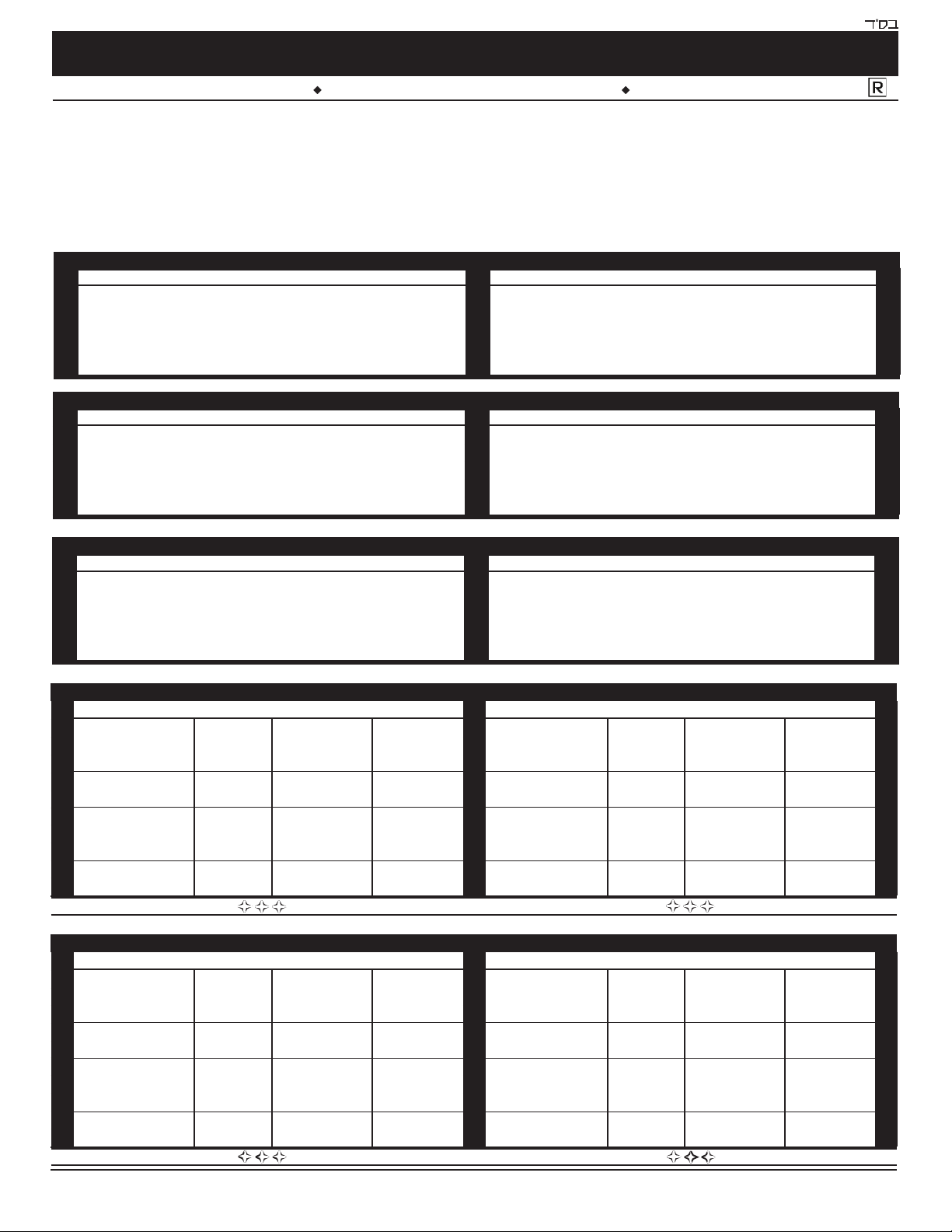
OpenText Delta Benchmarks
OpenText tested a number of common translation scenarios to provide you
with relevant time benchmarks for OpenText Delta. Each scenario was
executed several times and the following table represents the averages.
Benchmark testing was performed on a Dell Optiplex 745 with an Intel Core 2
4300 (1.8 GHz) processor and 3 GB of RAM. Maps were run in Delta test mode
with as little else as possible running on the system. Test results were
achieved b y placing logging into the maps. Each map logged a start time, a
“split time” for each 1,000 orders processed, and a nal translation time.
Because benchmarks were tracked using this logging method, map load time
is not included in these results.
Mapping from EDI
The following six translation scenarios feature EDI as source data. Below are
the specications for the source EDI le that these tests were performed with:
Mapping from Data File
The following two translation scenarios feature a data le as source data.
Below are the specications for the source data le that these tests were
performed with:
Structured data le (i.e., contains two record types)
1,000 total header records (representing purchase orders)
6,064 total detail records (representing purchase orders line items)
593,920 bytes le size
Editions &
System Requirements Features Introduction Benchmarks Enhancements
© 2021 OpenText. All rights reserved.